
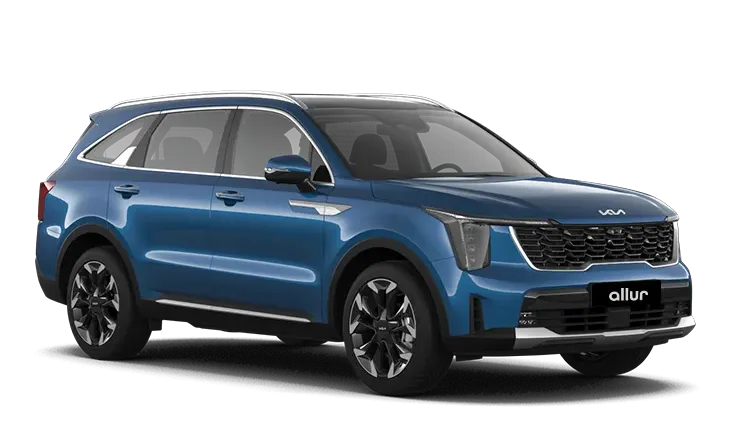
 Kia Sorento: Personalized profile and vehicle settings
When you pair a registered smartphone with a driver profile, your Kia Sorento automatically configures stored comfort settings (such as unlocking doors via Digital Key 2) to match that active user profile. Profile linking and driver personalization support up to two individual driver profiles simultaneously.
Infotainment menu layouts, settings pathways, and interface options are subject to change after system software updates. For comprehensive guidance, consult the digital user's manual provided inside the Kia Sorento infotainment system as well as the accompanying quick reference guide.
Linking and unlinking profile
How to link user profile
- On the Kia Sorento touchscreen settings menu, navigate to Setup > User profile > Profile setting > Link digital key (smartphone).
- When the prompt appears, select Link to connect the digital key attached to your registered phone number directly with the selected driver user profile. Follow the on-screen display prompts to proceed.
- Tap the Link command button on the interface to initialize the cryptographic handshake between your smartphone's digital key and the onboard system profile.
- Once the pairing sequence finishes successfully, the message "Digital Key Link Complete" will display on your Kia Sorento touchscreen display.
- Tap Link, then choose your designated phone from the connected smartphone list displayed on screen. Complete the configuration by following the step-by-step instructions shown on the central display.
When the link sequence finishes, the system displays the "Digital Key Link Complete" message on your Kia Sorento infotainment screen.
How to unlink user profile
- Navigate on your Kia Sorento display to Setup > User profile > Profile setting > Link digital key (smartphone). You can execute the unlinking action directly within the user profile settings menu whenever a device link is active.
-
When the unlinking process completes successfully, the confirmation notice "Digital key is unlinked" will appear on the central touchscreen.
TIP
-
A single smartphone cannot be linked simultaneously to multiple driver profiles (such as Driver 1 and Driver 2). Your Kia Sorento applies settings from the most recently linked user profile and automatically overrides any previous profile assignment.
-
You can link a user profile only when the Digital Key 2 is actively registered both on your smartphone wallet app and inside your Kia Sorento onboard computer. A smartphone paired with another vehicle's digital key system cannot be linked here.
-
The physical NFC card key functions strictly as an emergency or secondary key, meaning it cannot be linked to personalized driver profile presets.
-
If you remove the smartphone from the wireless charging pad surface before the system finishes linking, the pairing routine interrupts and fails to complete.
-
If you delete a user profile linked to a smartphone digital key, you must re-register the digital key and re-assign your preferences within the Kia Sorento personalization settings.
-
System settings and display pathways may evolve following system software revisions. Consult the built-in manual on your Kia Sorento display screen and the quick reference guide for current updates.
-
Vehicle personalization operation
Personalization features tied to Digital Key 2 function automatically under the following operational conditions:
-
Hold your profile-linked smartphone against the exterior driver's door handle pad to lock or unlock the vehicle. (Personalized driver profile settings do not activate when locking or unlocking through the front passenger door handle sensor.)
-
You can trigger personalized vehicle adjustments via your digital key only after completing the digital key link sequence inside the infotainment system user profile menu.
-
Automatic driver profile recognition engages when vehicle power is OFF or when starting the vehicle remotely. Without a remote engine start, driver personalization features will not activate via digital key detection alone.
TIP
Your Kia Sorento user profile adapts to entry credentials and door locking/unlocking methods as outlined below:
Item
Personalization operation
Initial value
Guest
Profile linked smartphone key
Linked profile
Profile unlinked smartphone key
Recently activated profile
NFC card key
Smart key
Vehicle personalization with Digital Key 2
Your Kia Sorento adapts comfort, driver assistance, and multimedia preferences according to the following system matrix:
|
System |
Personalization Item |
|
|---|---|---|
|
User Settings menu |
Lamp |
Blink number of 1-touch signal lamps |
|
Cluster |
Information display on the cluster, Voice volume, Welcome sound |
|
|
Seat |
Seat position |
|
|
Smart heating wire ventilation ON/OFF |
||
|
Door |
Automatic door lock/unlock |
|
|
Smartphone wireless charging |
Wireless charging ON/OFF |
|
|
Air conditioning |
Setting up temperature unit, Block air inflow/ Automatic ventilation, Window defroster ON/OFF |
|
|
Infotainment Settings menu |
Navigation |
Preferred navigation system volume |
|
Recent destination |
||
|
User preset |
My menu list settings, Radio preset |
|
|
Phone connectivity |
Bluetooth preferential connection |
|
|
CarPlay/Android Auto/MirrorLink ON/OFF |
||
|
Air conditioning |
Operating condition |
Latest operation setup of the following functions: Temperature (AUTO), Air flow direction, Air volume, Air conditioner, Air intake control, SYNC, Front windshield defroster. |
For exhaustive detailed operational instructions on personalization settings, refer to your Kia Sorento infotainment system manual.
TIP
If you leave your Digital Key 2 device inside the cabin after locking or unlocking doors or starting the engine using the physical smart key fob, you can lock the cabin doors using the central door lock controls. Always keep your digital key on your person whenever stepping out of your Kia Sorento.
 Digital Key 2 (NFC Card Key)
 Digital Key 2 maintenance for a pre-owned vehicle. Limitations of the system
See also:
Specifications
Tightening Torques
Items
N.m
Kgf.m
lb-ft
Transfer assembly mounting bolts
60.8 ~ 65.7
6.2 ~ 6.7
44.8 ~ 48.5
...
Wheel Hub nut tightening sequence
Tighten the hub nuts as follows.
Tightening torque:
88.3 ~ 107.9N.m (9.0 ~ 11.0kgf.m, 65.1 ~ 79.6lb-ft)
...
Oil Pressure Switch Inspection
1.
Check the continuity between the terminal and the body with an ohmmeter.
If there is no continuity, replace the oil pressure switch.
2.
...
Manuals list
- Kia Sorento MQ4 2021-2026 Owners Manual
- Kia Sorento XM 2011-2015 Owners Manual
- Kia Sorento XM 2011-2015 Service Manual
