
 Kia Sorento: Surround View Monitor operation
Parking/View button
|
(1) Parking/View button
To instantly activate the Surround View Monitor on your Kia Sorento, press the physical Parking/View button (1) located conveniently on the center console.
Press the same button a second time to deactivate the Surround View Monitor display.
Front-view
|
|
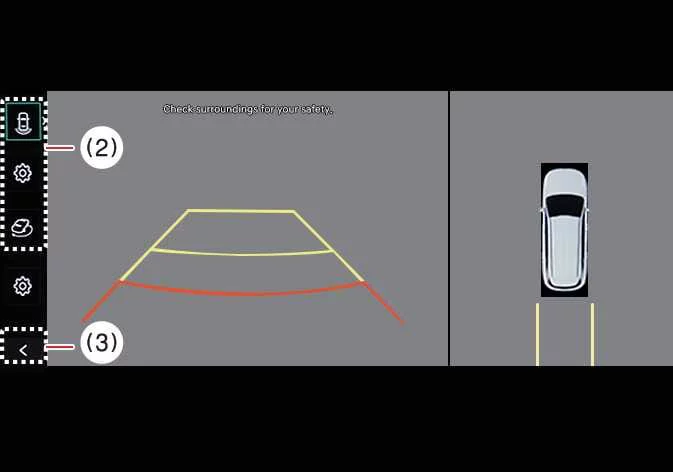
(2) View switching button
(3) back button
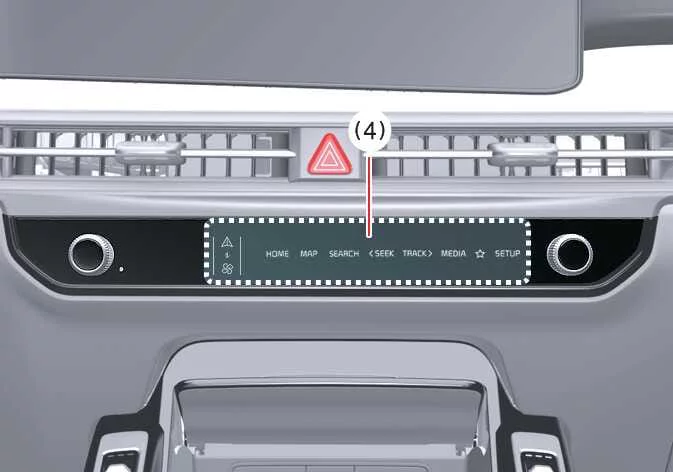
(4) infotainment system operation button
The front-view function enhances driving safety by displaying real-time video feed of the area immediately ahead of your Kia Sorento directly on the navigation screen, configured according to your personal preferences.
Parking
The Surround View Monitor front-view function engages automatically during parking maneuvers under specific operational conditions:
-
Your Kia Sorento gear selector is positioned in P (Park), N (Neutral), or D (Drive) while traveling at a speed below 6 mph (10 km/h), and you press the physical Parking/View button (1).
-
You shift your transmission gear from R (Reverse) into N (Neutral) or D (Drive) while maintaining a vehicle speed under 6 mph (10 km/h).
-
The Forward Parking Distance Warning system triggers an alert while your gear selector remains in D (Drive).
*(Providing you have enabled Setup > Vehicle > Driver Assistance > Parking Safety > Surround View Monitor Auto On within your Kia Sorento infotainment settings).
Press the view switching button (2) on your Surround View Monitor screen to cycle through Top View, Front View, Side View, or Wide View perspectives.
The Surround View Monitor front-view function will automatically turn OFF when you are parking under these circumstances:
-
You shift your transmission gear into P (Park) or R (Reverse).
-
You press the physical Parking/View button (1).
-
You tap the software back button (3) located on the Surround View Monitor touchscreen.
-
You press the primary infotainment system power button (4).
-
Your Kia Sorento accelerates past a speed of 6 mph (10 km/h).
When the Surround View Monitor Front View feature initializes, it conveniently displays the exact camera angle and mode you used during your previous parking session.
Rear-view
|
|
|
(2) View switching button
(3) back button
(4) infotainment system operation button
The Surround View Monitor Rear-view function assists you in executing secure parking maneuvers by rendering clear video footage of the zone behind your Kia Sorento on the navigation display.
Parking
The Surround View Monitor Rear-view function activates during parking under these conditions:
-
You press the Parking/View button (1) and select Rear View using the view switching button (2) while your gear selector is in P (Park), N (Neutral), or D (Drive) at a vehicle speed below 6 mph (10 km/h).
-
You shift your transmission gear directly into R (Reverse).
Press the view switching button (2) on the Surround View Monitor interface to select Top View, Front View, Side View, or Wide View.
The Surround View Monitor Rear-view function turns OFF during parking under the following conditions while your gear is set to P (Park), N (Neutral), or D (Drive):
-
You shift your transmission gear from N (Neutral) or D (Drive) into P (Park).
-
You press the physical Parking/View button (1).
-
You tap the software back button (3) on the Surround View Monitor touchscreen interface.
-
You press the infotainment system power button (4).
-
Your Kia Sorento exceeds a driving speed of 6 mph (10 km/h).
The Surround View Monitor Rear-view function also turns OFF automatically when you shift your transmission gear from R (Reverse) into P (Park).
The Rear View feed will always display automatically whenever you shift your Kia Sorento transmission gear into R (Reverse).
When your gear selector is actively engaged in R (Reverse), pressing the infotainment system power button (4) will not interrupt or turn off the rear camera video feed.
3D View function
|
|
|
(2) View switching button
(3) back button
(4) infotainment system operation button
The Surround View Monitor's advanced 3D View function on your Kia Sorento renders a comprehensive, multi-angle visual representation of the vehicle's immediate surroundings directly on the central touchscreen display. To cycle through the available perspective angles, simply tap the dedicated 3D View icon located within the Surround View Monitor interface. If you need to reset the camera perspective back to the default alignment, press the 3D View icon once more to instantly restore the standard viewpoint.
The Surround View Monitor's 3D View function activates under the following conditions:
-
You shift the gear to P (Park), N (Neutral), or D (Drive) at a speed below 6 mph (10 km/h).
-
You press the view switching button (2) to select 3D view while the gear is in R (Reverse) and Surround View Monitor is operating.
The Surround View Monitor's 3D View functions turns OFF when you are parking under the following conditions:
-
You shift the gear from N (Neutral) or D (Drive) to P (Park).
-
You press the Parking/View button (1).
-
You press the back button (3) on the Surround View Monitor screen.
-
You press the infotainment system power button (4).
-
You drive above 6 mph (10 km/h).
-
You shift the gear from R (Reverse) to P (Park).
When the vehicle is in R (Reverse), the 3D view function of the Surround View Monitor will turn off under the following conditions:
-
Shifting to P (Park)
TIP
-
The 3D View does not display parking guidelines.
-
The Top View screen, which displays the Front View, Rear View, or 3D View, converts the original footage captured by your Kia Sorento's 4 wide-view cameras to provide a complete 360-degree overhead image of the vehicle.
-
Top View does not display when you select Front or Rear Wide View.
-
Pinch the Top View area to zoom in or out.
 Surround View Monitor settings
 Surround View Monitor malfunction and limitations
See also:
If the engine will not start
If engine doesn't turn over or turns over slowly
1.If your vehicle has an automatic transaxle, be sure the shift lever is in N
(Neutral) or P (Park) and the emergency brake is set.
2.Check the ...
Forward Collision-Avoidance Assist (FCA) (Sensor Fusion)
Basic function
The Forward Collision-Avoidance ...
Front Wiper Motor Inspection
Speed Operation Check
1.
Remove the connector (A) from the wiper motor.
2.
Attach the positive (+) lead from the battery to terminal ...
Manuals list
- Kia Sorento MQ4 2021-2026 Owners Manual
- Kia Sorento XM 2011-2015 Owners Manual
- Kia Sorento XM 2011-2015 Service Manual
